Nagi.
A calmer workspace for your tabs.
A workspace browser for Android phones and tablets. Use a bottom address bar on phones or a sidebar on wide screens, and organize your browsing with Spaces, split view and the Command Bar.
- Android 8.0+ · Google Play
- English · Spanish · French · Japanese · Korean · Simplified Chinese
- Official installs and updates: Google Play
Made for your phone, too.
Version 1.4.0 improves the phone interface and on-screen keyboard behavior. The tab sheet fits its contents, and the address bar keeps New tab and the page menu close at hand.
See it in use.
Swipe sideways or use the arrows to browse
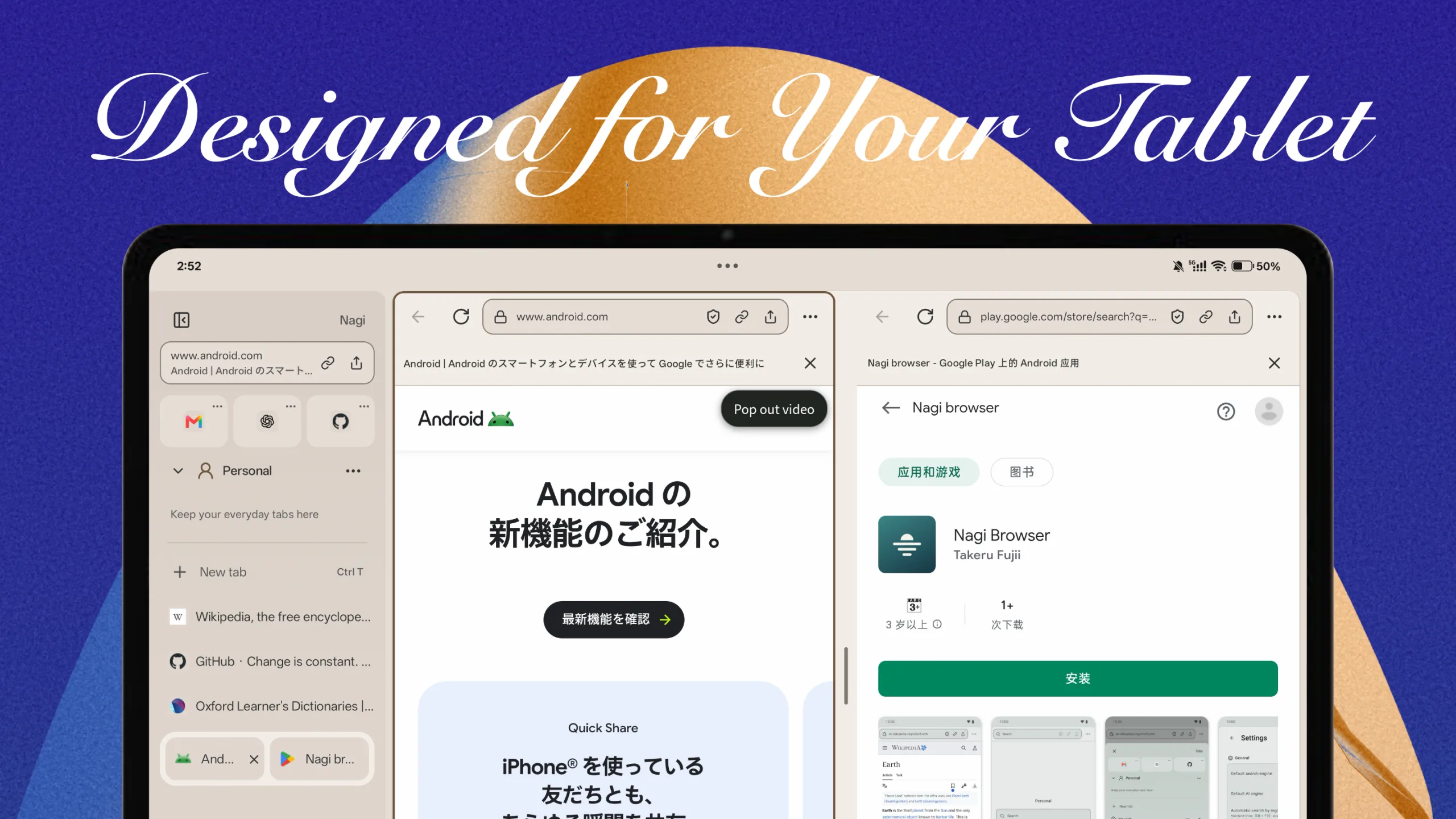
Fits the size of your screen.
Use a bottom address bar and tab sheet on phones, or a sidebar on wide screens. You can also place the address bar at the top. Page editors adjust when the keyboard opens, and resizing a window keeps the live page and what you are typing.
A Space for each task.
Organize ordinary and pinned tabs in Spaces, share Favorites across them, and open your history when you need it. Prefer one tab list? Turn Spaces off in Settings.
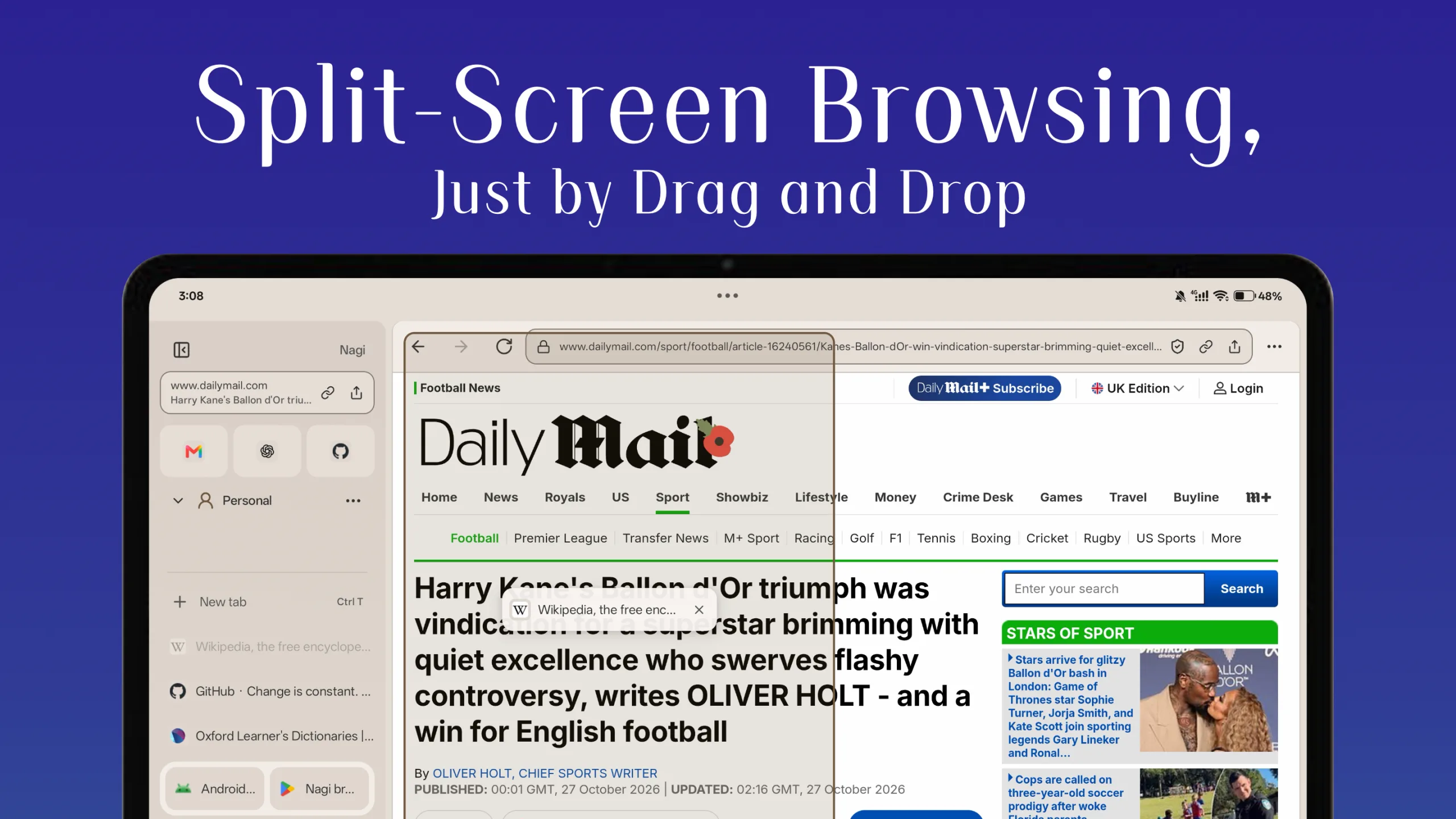
Two pages, side by side.
On wide screens, drag a tab to start split view and save the two pages as a pair. Adjust the split and sidebar widths. Narrow screens show one page while keeping your saved pairs ready to reopen in a wide window.
Search and navigate from one bar.
Use Ctrl / Command + L for URLs, search, tabs, history, Spaces and commands. Choose which suggestion categories appear in Settings. Hiding commands keeps their keyboard shortcuts available. Questions for ChatGPT open its website.
Make browsing feel like yours.
Choose light, dark or system appearance, theme and Space colors, and a new-tab background. Zoom in, zoom out or reset from the page menu or with Ctrl / Command + plus, minus or zero. Resume pinned tabs and saved split pairs from a new tab.
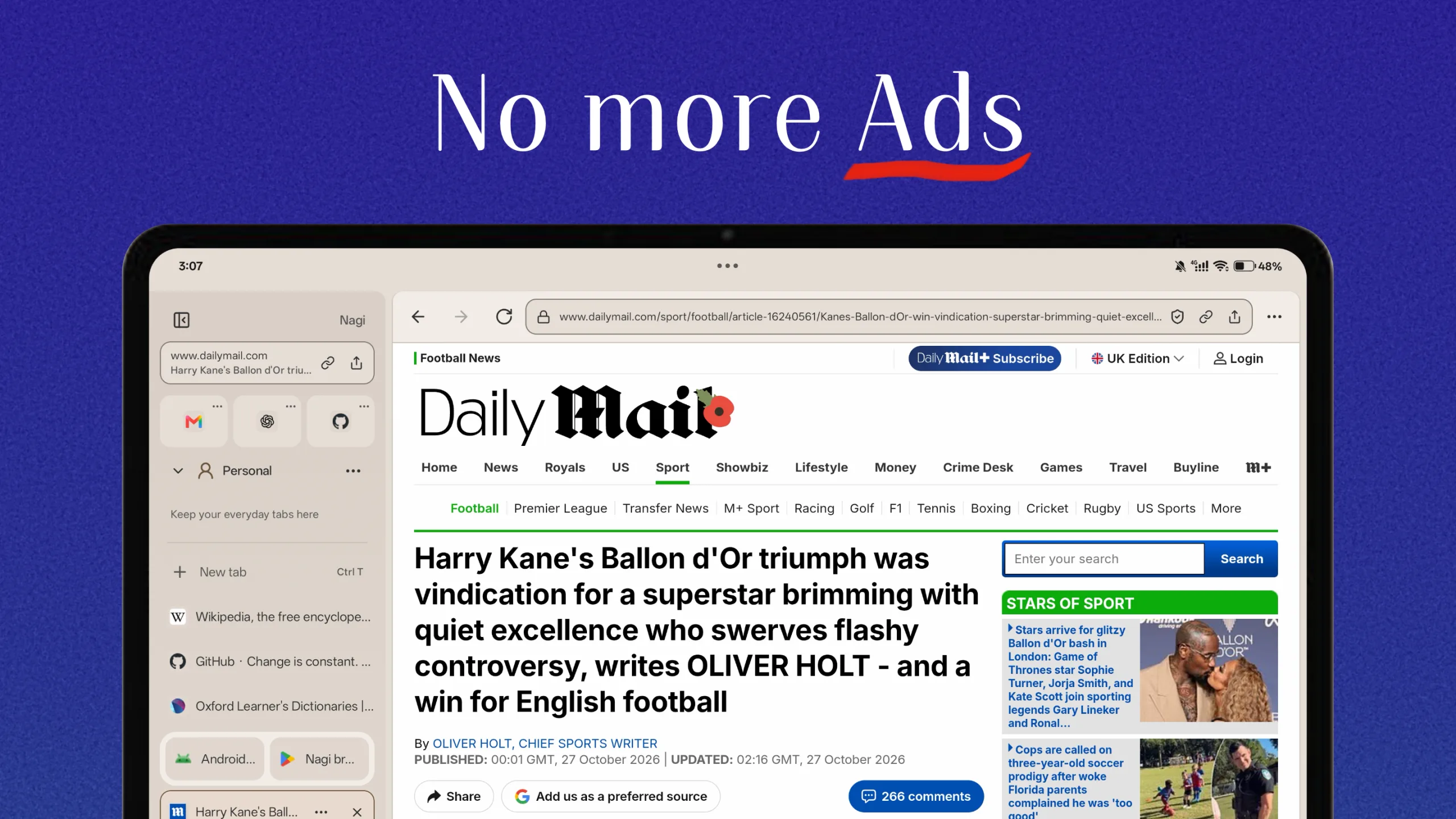
Fewer ads. More room to read.
Blocks ads and trackers, and collapses the empty slots they leave behind. Supports per-site exceptions and pausing on the current site. Read articles in Reader and adjust the text size.
Translate pages into your language.
Translate page text on your device with Google Translate. Remember your target language and continue translating same-language links in the same tab. Images and PDFs are excluded. Model downloads and SDK diagnostics use the network.
Choose where downloads go.
Choose a download folder, with Downloads as the fallback if access is lost. Confirm saves, follow download progress, and receive completion notifications for files generated by a page.
Keep video and browsing moving.
Videos you start can continue in a movable, resizable player when you switch tabs. Configure this separately from picture-in-picture when returning Home. Two-finger trackpad Back and Forward gestures are supported too.
A separate workspace for private browsing.
Supported WebView versions isolate private cookies and website storage. Keep the workspace when returning Home or when Android recreates the screen; explicitly closing private browsing or removing its task clears the data.
Clearer when a page cannot load.
Dedicated error screens explain connection, timeout and certificate problems and offer Retry. Website icons adapt to light and dark themes.
Good to know.
- Version 1.4.1 is available on Google Play as of November 19, 2026. It includes the phone UI and on-screen keyboard improvements, plus a fix for custom settings being lost during app updates.
- Install and update through Google Play. Google Play is the sole official channel for future releases.
- The old GitHub/website edition uses a different signing certificate, so an in-place switch may fail. Uninstalling deletes local tabs, bookmarks, settings and site data.
- GitHub hosts source code and release history. New APK downloads will not be published.
- If Google rejects sign-in in desktop view, try mobile view. Successful sign-in is not guaranteed.
- Page zoom may be limited by the website. Keeping a live page while resizing does not guarantee that forms are restored after the app or its process ends.
- Normal Spaces share cookies and logins. Private browsing requires a supported WebView. Cloud sync is unavailable.
- Photo uploads use JPEG. Generated file downloads are limited to 32 MB. Camera and password autofill behavior depends on your device and provider.